Account Linking
Linking connects a player's Discord account to their in-game gamertag. Until someone is linked they can't earn currency, claim kits, use teleports or buy from the shop — so this is the one thing worth setting up on day one.
Everything player-facing runs off the link. It's how the bot knows that the Discord user typing a command and the player standing in-game are the same person, which is what makes an economy, a shop and per-player rewards possible at all.
Two things must be true, every time
1. The player has to be in-game right now. The bot checks the live player list — that's what stops anyone claiming a gamertag that isn't theirs.
2. The gamertag must be typed exactly. It is case sensitive, spaces and all. RustLord and rustlord are two different players.
Put those two rules in your rules channel next to your link panel and you'll cut your support questions dramatically — between them they cause nearly every failed link.
Setting it up
As the server owner you only really need to do one thing: post a link panel in a public channel. After that your players link themselves. Pick whichever route suits you.
Web Dashboard
Post panels, grab your player portal link, and manage every linked account in one place.
No website neededDiscord — /user
Every linking action is available as a slash command inside your Discord.
Route A — Web Dashboard
Open the Linking module
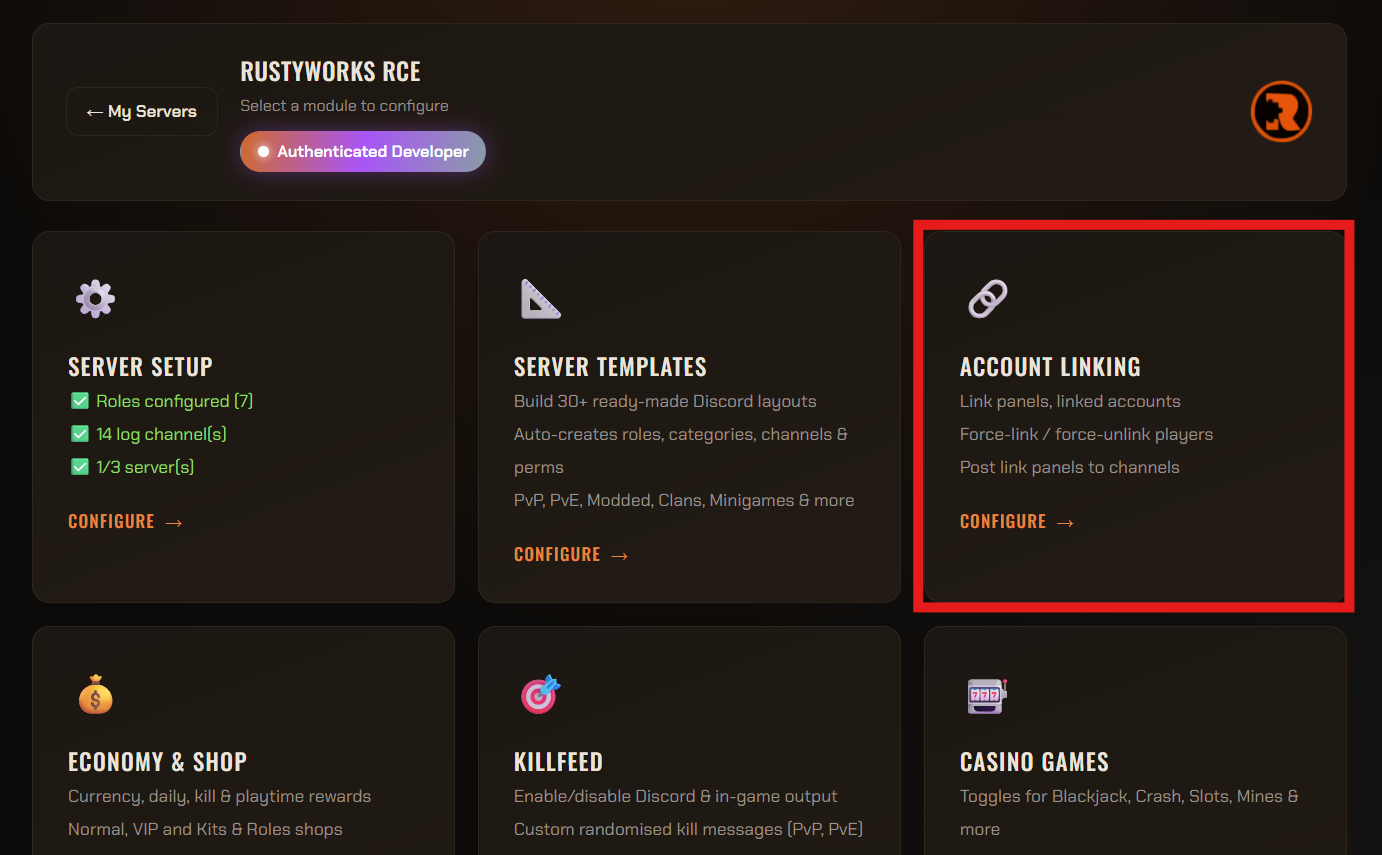
Log in to the RustyWorks website, click Servers Configure, choose your server, then select the 🔗 Account Linking module.
Grab your Player Portal link
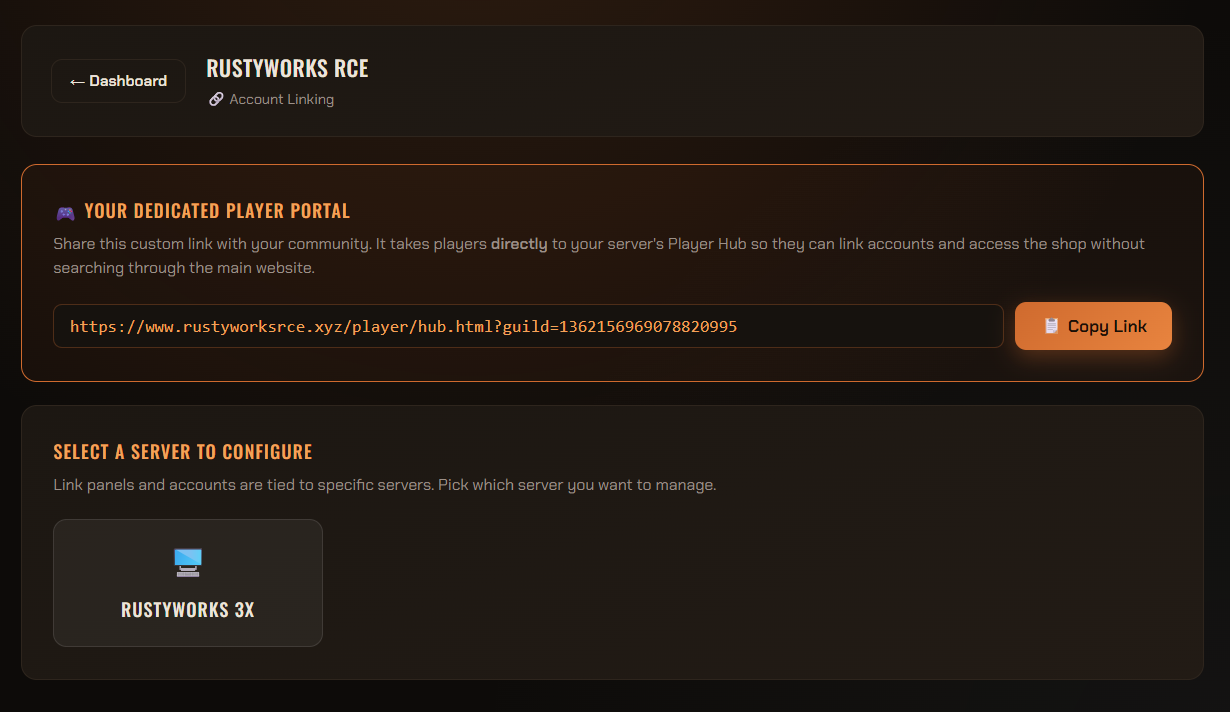
At the top of the page is your Dedicated Player Portal — a link unique to your Discord that drops players straight into your server's hub, where they can link and browse the shop from a browser.
Hit 📋 Copy Link and pin it somewhere obvious: your welcome channel, your rules channel, or your server's in-game message rotation.
Post a Link Panel
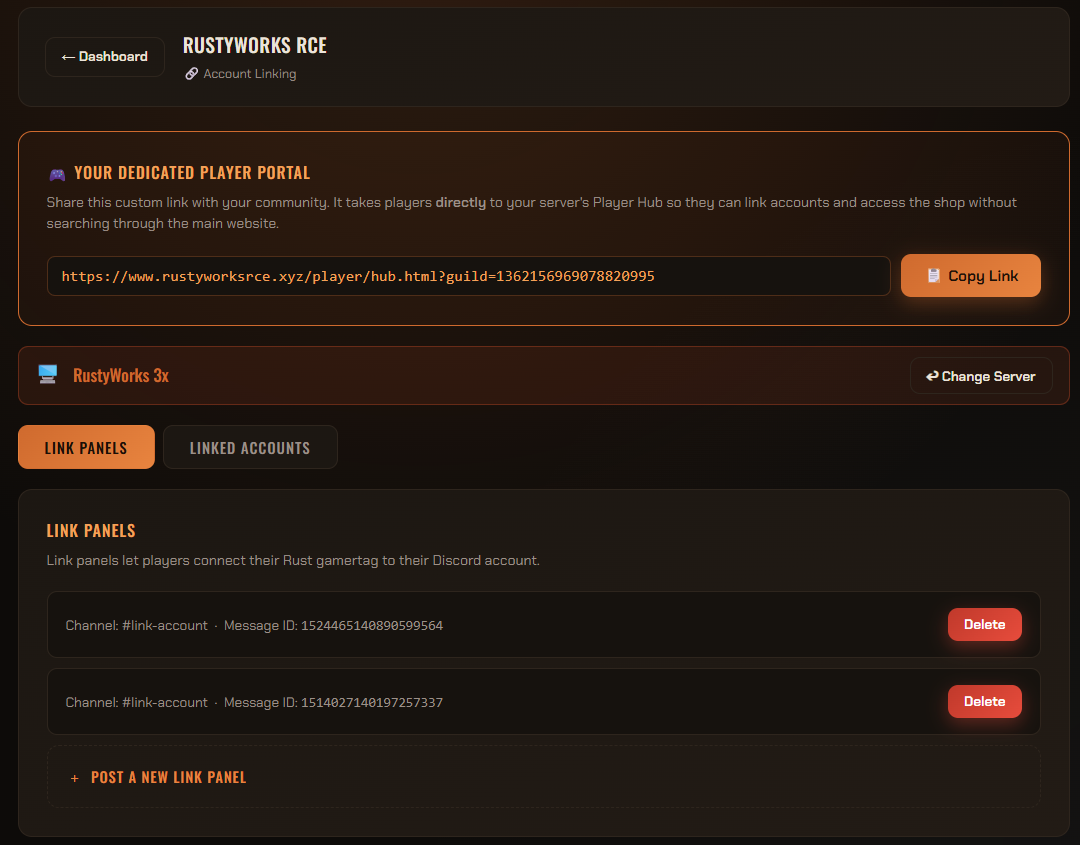
Select the server you want, then on the Link Panels tab click + Post a New Link Panel, choose a Discord channel, and hit 📌 Post Panel.
The panel is a message with Link Account and Unlink Account buttons on it. This is the single highest-impact thing you can set up — most casual players will never discover a slash command, but nobody struggles with a button.
Manage Linked Accounts
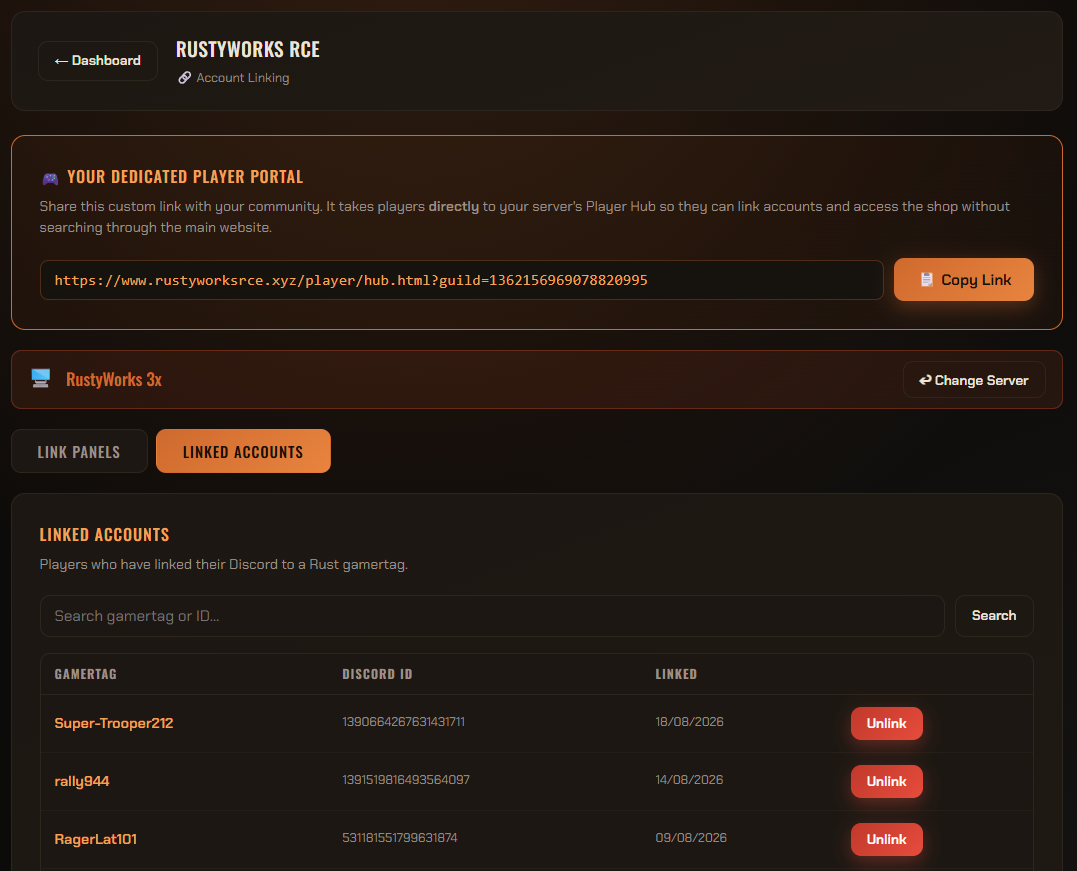
Switch to the Linked Accounts tab to see everyone linked to that server. You can search by gamertag or Discord ID, and unlink anyone directly from the list.
Far quicker than working through them one command at a time after a ban wave or a wipe.
Running more than one Rust server?
Panels are tied to a specific server. Post one panel per server, in clearly named channels — otherwise players link to the wrong one and then wonder why their balance is empty.
Route B — Discord commands
Everything above is also available as a slash command. To post a panel from Discord, run /user linkpanel and pick the server and the channel.
| Command | What it does | Who |
|---|---|---|
/user link |
Links your own Discord to a gamertag. You must be online in-game. | Anyone |
/user unlink |
Removes your own link. See the warning below before telling players about this one. | Anyone |
/user linkpanel |
Posts a link panel into a channel you choose. | Head Admin+ |
/user forcelink |
Links someone else on their behalf. They still need to be online. | Head Admin+ |
/user forceunlink |
Removes someone else's link. Useful after a ban, or to free a wrongly claimed gamertag. | Head Admin+ |
/user transfer |
Moves a link to a different Discord account and/or a new gamertag, keeping their progress. | Head Admin+ |
Why Head Admin and not Admin?
Staff-gated linking commands need Owner, Co-Owner or Head Admin. The Admin and Moderator role slots are used by individual modules for in-game powers and do not unlock these. If a staff member is being refused, that's almost always why.
What players actually do
Worth pasting into your rules channel more or less verbatim:
Get in-game
Join the Rust server and stay connected for the next few steps.
Press the button
Click Link Account on the link panel — or run /user link and type the gamertag exactly as it appears in game.
Done
The bot checks the live player list, gives them the Linked role, and creates their account for that server. Every player feature unlocks immediately.
Linking unlocks achievements
The moment a player links they'll unlock their first achievement and start earning progress toward others in the background as they play. They can check where they're at with /achievements.
We're not going to spoil what's in there — half the appeal is players discovering them. Just know it gives newcomers an immediate reason to link rather than putting it off.
Give people a reason to link
The Linked role is handed out automatically and taken back on unlink, so it makes a reliable gate. The usual approach is to leave one or two channels public — rules, and the link panel itself — and restrict the rest of your Discord to the Linked role. Players get a concrete reason to link on day one, and you get a member list that maps to real players on your server.
Pin the Player Portal link alongside the panel for anyone who'd rather use a browser than Discord commands.
Staff tools in practice
Someone changed gamertag or lost their Discord
Use /user transfer, not unlink-and-relink. Transfer carries their balance, playtime, cooldowns and any temporary roles across. Unlinking and relinking starts them from nothing.
You can move them to a new Discord account, give them a new gamertag, or do both at once. If a new gamertag is involved they'll need to be online so the bot can verify it.
Unlinking clears their balance
Unlinking removes the Linked role and wipes that player's economy account for that server. It cannot be undone.
Say this plainly in your rules channel. Players do it by accident — usually while trying to fix something unrelated — and then ask you to restore a balance that no longer exists. If they just mistyped their gamertag, have staff use /user transfer instead.
Rules to know
- One Discord account links to one gamertag per Rust server.
- A gamertag can't be claimed by two Discord accounts on the same server.
- Linking is per-server. Running three servers means players link on each one they play, and progress on one doesn't carry to another.
- To change a link, unlink first — or have staff transfer it.
- Every link and unlink is written to your Linking log channel, so you can always see who did what and when.
Troubleshooting
| Message | What's happening | Fix |
|---|---|---|
| Player Not Found | They're not currently in-game, or the capitalisation doesn't match. | Get them in-game, then copy the gamertag exactly as it appears in Rust. |
| Already Linked | That Discord account is already linked to this server. | Unlink first, or use transfer if they're keeping their progress. |
| Gamertag Already Linked | Another Discord account holds that gamertag. | Work out who genuinely owns it, then transfer it to the right account. |
| Linked, but no role given | The RustyWorks role sits below the Linked role in your role list. | Drag the RustyWorks role higher in Server Settings → Roles. Discord blocks bots from assigning roles above their own. |
| Panel buttons do nothing | The server that panel points at was removed. | Delete the panel and post a fresh one for a current server. |
| Not Set Up | Server setup hasn't been completed yet. | Finish Server Setup & RCON first. |
"But my name IS right!"
Nine times out of ten it's an invisible difference — a trailing space, a capital letter mid-name, or a character that looks like a normal letter but isn't. Have them copy it rather than type it, or use /user forcelink while they're online and paste it yourself.
Need human assistance?
If a player can't link and none of the above fits, our community is here to help.